
Before you begin
Clearing your web browser's cache, cookies, and history may remove data such as the following:
- Saved passwords
- Address bar predictions etc.
While you should clear your web browser's cache, cookies, and history periodically in order to prevent or resolve performance problems, you may wish to record some of your saved information first.
Notes:
- For desktop browsers, to quickly open menus used to clear your cache, cookies, and history, ensure that the browser is open and selected, and press
Ctrl-Shift-Delete(Windows) orCommand-Shift-Delete(Mac). If this doesn't work, follow the appropriate instructions below. - If the instructions below don't exactly match what you see, you may need to update your web browser to the latest version.
If you don't see the instructions below for your specific version or browser, search your browser's menu for "clear cache". If you're unsure what browser version you're using, from the menu or your browser's menu, select . In Internet Explorer and Firefox, if you don't see the menu bar, press
Alt. - If you need to clear your cache, cookies, and history for troubleshooting purposes but aren't yet prepared to lose the content listed above, you may wish to consider using a private browsing window in your preferred browser as a temporary solution
Desktop browsers
Chrome
- In the browser bar, enter:
chrome://settings/clearBrowserData
- At the top of the "Clear browsing data" window, click .
- Select the following:
From the "Time range" drop-down menu, you can choose the period of time for which you want to clear cached information. To clear your entire cache, select .
- Click .
- Exit/quit all browser windows and re-open the browser.
Firefox
- From the menu, select .
If the menu bar is hidden, press
Altto make it visible. - From the drop-down menu, select the desired range; to clear your entire cache, select .
- Next to "Details", click the down arrow to choose which elements of the history to clear; to clear your entire cache, select all items.
- Click .
- Exit/quit all browser windows and re-open the browser.
Microsoft Edge
- In the top right, click the Hub icon (looks like a star with three horizontal lines).
- Click the History icon (looks like a clock), and then select .
- Select , then , and then . Click .
- After the "All Clear!" message appears, exit/quit all browser windows and re-open the browser.
Internet Explorer 11
- Select .
If the menu bar is hidden, press
Altto make it visible. - Deselect , and select:
- or
- or
- Click . You will see a confirmation at the bottom of the window when the process is complete.
- Exit/quit all browser windows and re-open the browser.
Note: If you experience difficulty with Internet Explorer, make sure compatibility mode is turned off.
Opera
- From the menu, select , then , and then
- In the dialogue box that opens, from the "Obliterate the following items from" drop-down menu, select .
- Select the following:
- Click .
- Exit/quit all browser windows and re-open the browser.
Safari 8 and later
- From the menu, select or
- Select the desired time range, and then click .
- Go to or press
Command-Qto exit the browser completely.
Delete iOS (iPhone & iPad) history & cache
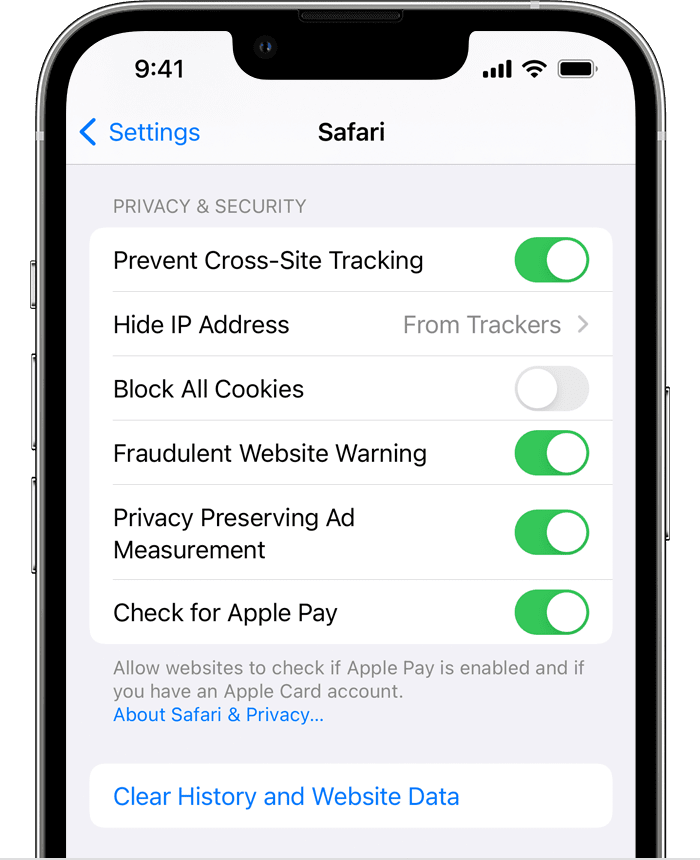
- To clear your history and cookies, go to Settings > Safari, and tap Clear History and Website Data. Clearing your history, cookies, and browsing data from Safari won't change your AutoFill information.
Clear your history in Android (Chrome)
- On your computer, open Chrome.
- At the top right, click More
.
- Click History
History.
- On the left, click Clear browsing data. A box will appear.
- From the drop-down menu, select how much history you want to delete. To clear everything, select All time.
- Tick the boxes for the data that you want Chrome to clear, including 'browsing history'.
- Click Clear data.